Duplicate Finder
Other languages: EspañolFrançaisDeutsch日本語한국어PortuguêsРусский中文
Duplicate finder is an open-source application for detecting similar text across one or more files. It can be used to find 100% duplicates as well as content that is similar but not identical. The tool is compatible with several formats, including plain text, Markdown, and XML.
The duplicate finder tool can help you with:
- Detecting plagiarisms
- Content management
- SEO optimization
- Data deduplication
Duplicate content example
Here's a quick example to give you an idea of what the tool detects:
How to use
- Download the app. Alternatively, you can build it yourself from the sources.
Run
./gradlew fatJarwith JDK 21 in the source directory. The JAR will be inbuild/libs/duplicate-finder.jar. - Make sure Java 21 or later is installed on your computer
- In the terminal, open the folder with the .jar file you downloaded
-
Execute
java -jar duplicate-finder.jarwith the following parameters:Parameter Meaning Example -r/--rootRelative or absolute path to the folder where you want to search for duplicate content. Default: the current working directory. -r=./my-project/-o/--outputRelative or absolute path to the folder where you want to save the results of the analysis. Default: ./duplicate_finder_output, relative to the current working directory. -o=./my-project/duplicates/-f/--fileMaskFiles: List the file extensions to scan, separated by commas, without leading dots. Use * to include all extensions.
Parser: Each entry can be an extension alone or extension:parser. The parser determines how a file is split into text chunks for comparison. If omitted, it is chosen from the extension; unrecognized extensions use file.
Defaults: The default file list is .md, .mdx, .xml, .adoc, .asciidoc and .properties. Specifying -f replaces this list.
Parser names (after the colon) and the text chunks they produce:
- md – a markdown element
- line – a single line of text
- xml – an XML element
- adoc – AsciiDoc element
- file – entire file's content
- properties – a property value
-f=md,mdx
Scan only .md and .mdx files, using the Markdown parser for both.-f=topic:xml,txt:line
Scan .topic files with XML elements as chunks and .txt files with lines as chunks.-f="*:line"
Scan all files, treating each line as a separate text chunk.-l/--minLengthThe minimum length (in characters) for a text chunk to be analyzed. Default: 100 (text fragments shorter than 100 characters are ignored) -l=150-s/--minSimilarityThe minimum degree of similarity between two text chunks to be considered duplicates. Default: 0.9 (90%) -s=0.85-d/--minDuplicatesThe minimum number of duplicates for a duplicates' group to be reported. Default: 1 (one duplicate is enough) -d=5-ui/--uiWhether to use the interactive UI or not. Options: - none – no UI, only write to files
- swing – old UI
- compose – new UI, default
-ui=none-v/--verbosePrint indexing and analysis times to the console. Disabled by default. Errors for skipped files are reported regardless of this option. -v-g/--gram(advanced) ngram length. Affects the speed, memory footprint, and the accuracy of the analysis. The effect depends on the specifics of the content. -g=10-w/--keepWhitespaceKeep occurrences of multiple succeeding whitespace in the parsed content. By default, whitespace is normalized, meaning multiple consequent whitespace characters are treated and displayed as one. -w-i/--inlineInclude the content of the nested elements in their enclosing element. For example:
<parent>Some content including <child>nested content</child></parent>With this option, the outer element will be parsed as 'Some content including nested content', while by default it is parsed as 'Some content including </>'.
-i
Configuration file
You can save settings in duplicate-finder.properties in the content root (-r, or the current directory). Use long option names without -- as keys. For example:
fileMask=topic:xml,md,mdx
minSimilarity=0.85
minLength=200
ui=none
Run without arguments to load the file from the current directory, or use -r to select a different content root. Missing settings use their defaults. The -o, -ui and -v options can override the saved settings. Passing -s, -l, -d, -f, -g, -w or -i bypasses the configuration file entirely.
Command example
Here is an example of what your command might look like:
java -jar duplicate-finder.jar -r=/Users/me.user/my-site -f=md,mdx -s=0.85 -d=5 -l=200
The command above will do the following:
-
-r=/Users/me.user/my-site– search for similar content in '/Users/me.user/my-site' and its subdirectories -
-f=md,mdx– only consider files with the '.md' and '.mdx' extensions and parse them according to Markdown rules -
-s=0.85– only report matches with a similarity of 85% or higher -
-d=5– only report texts that are duplicated 5 or more times -
-l=200– only report texts that are 200 characters or longer
Results
Depending on the settings and the size of the project, you may have to wait a little bit for the analysis to complete. After that, the results will open in the duplicates viewer and saved the folder defined with the '-o' command line option. By default, text reports are saved to ./duplicate_finder_output in the working directory. Use -ui=none to save reports without opening the viewer.
Here is what you see in the duplicates viewer:
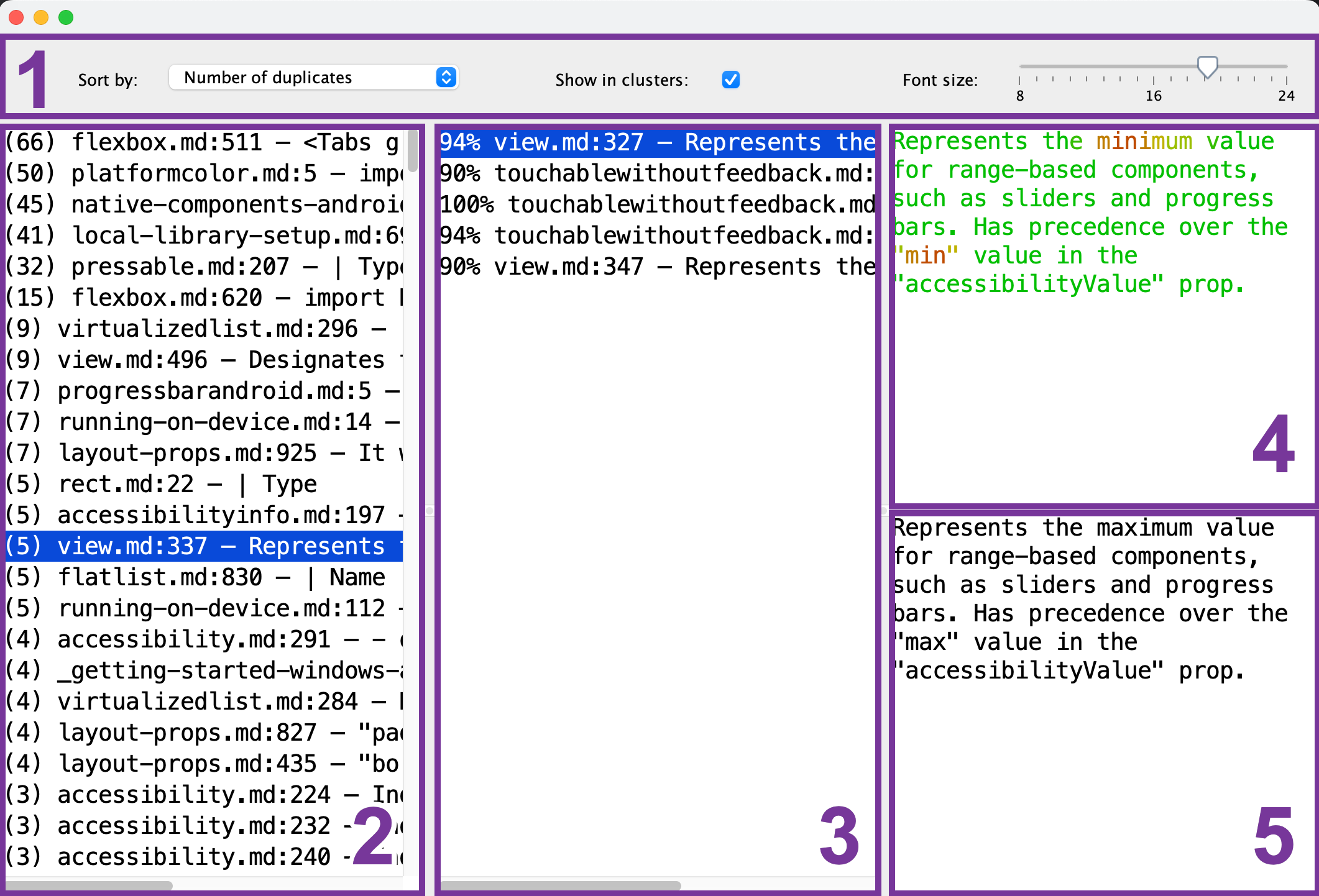
- Toolbar: configure the font size, sorting order, and whether you want to only see a single reference chunk (2) for each of the duplicate groups. Use Fuzzy search to enter a text query and find similar passages with an adjustable similarity threshold.
- Reference chunk list: select the chunk that serves as a reference for comparison.
- Duplicate chunk list: after you've selected the reference chunk (2), this list will show the chunks that are similar to it. To preview a duplicate, select it from the list.
- Reference chunk preview: after you've selected the reference chunk (2), you can preview its content here. Common parts are shown in green, while the differing ones are shown in red. The more of the duplicate chunks (3) have some fragment in common, the greener it will appear.
- Duplicate chunk preview: after you've selected the duplicate chunk (3), its preview will appear here. You can use it for a quick comparison with the selected reference chunk (4).
Learn more & contact
If you're interested in the development of this tool, check out the related blog post series:
- Duplicate Finder for Text
- Duplicate Finder for Text: Requirements
- Junie Codes (AsciiDoc Support)
- Duplicate Finder for Text: Algorithm
For feedback, you can reach out using the contacts in the footer of this page. I will be happy to hear your thoughts and feature requests.
License
The code is licensed under the MIT license, which means you are free to use it for any purpose as well as fork and modify it.